1. Purchase Credits
Before using WPML Magic Translate, you must purchase translation credits.
Visit the following link:
https://wpmlmt.ulayers.com/
2. Create Your API Key
After purchasing credits:
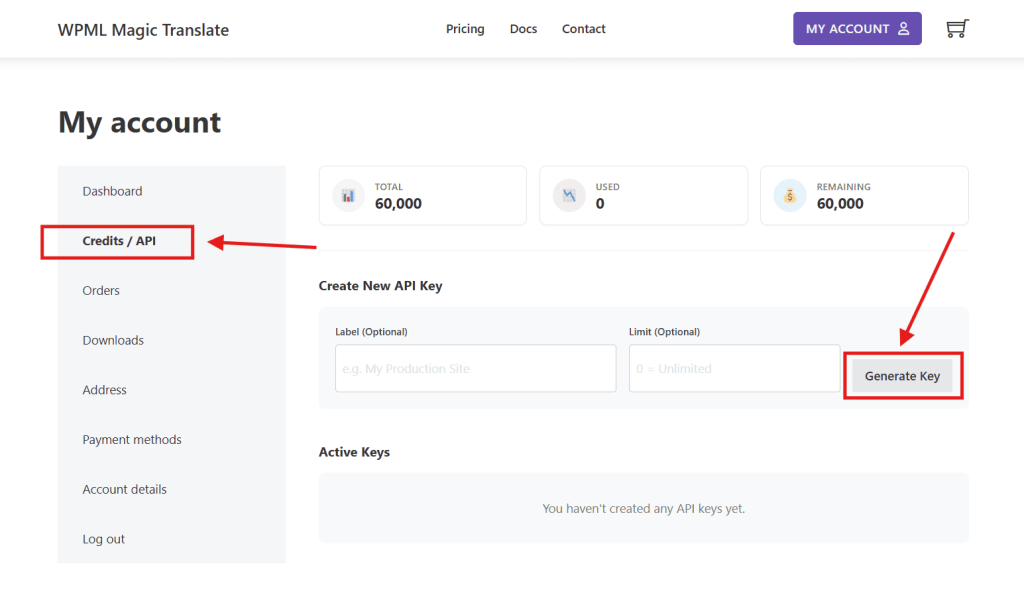
- Go to My Account
- Open the Credits / API tab
From there, you can create and manage your API keys.
API Features:
- Create a new API key for your website
- Assign a Label to identify each API
- Set a Limit for each API key to control credit usage
- Use 0 as the limit value to allow Unlimited usage
- Edit the API label or limit at any time
- Delete any API key you no longer need
This allows you to recharge a large amount of credits and distribute them safely across multiple websites or projects.
3. Download the Plugin
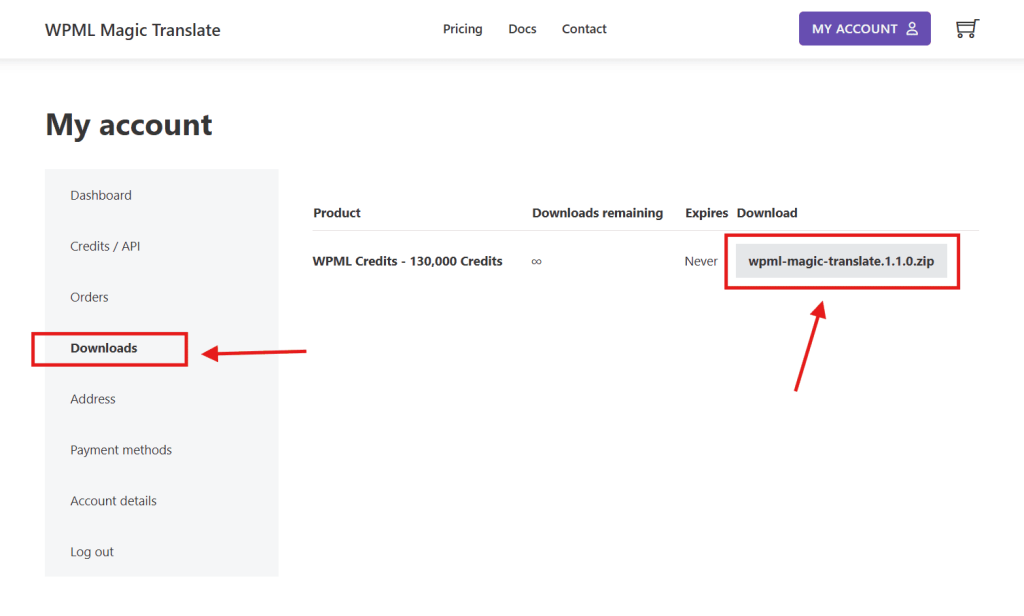
- Go to the Downloads tab
- Download the WPML Magic Translate plugin
- Upload and install the plugin on your WordPress website
- Activate the plugin from the Plugins page
4. Plugin Setup
After activation:
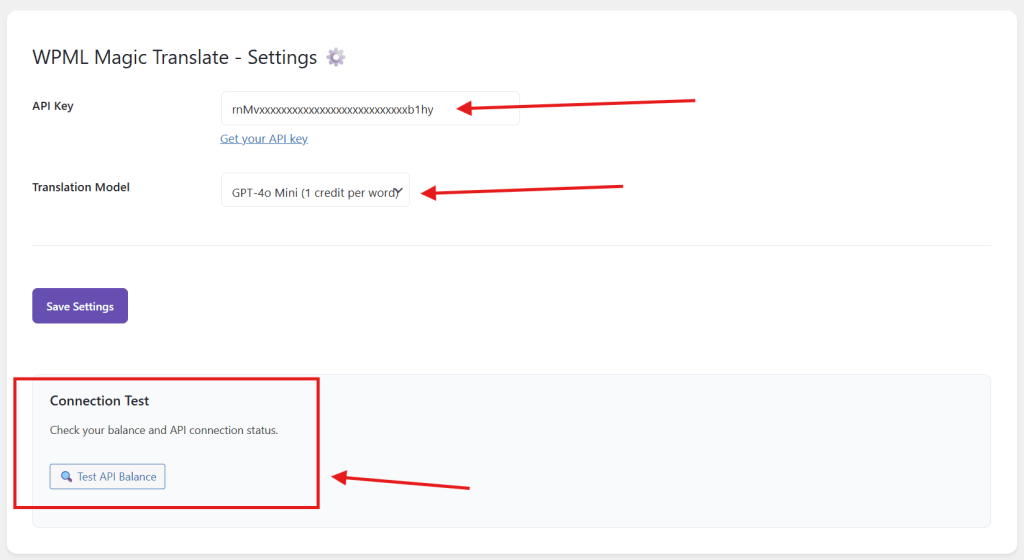
- Go to Settings
- Enter your API Key
- Select the AI Translation Model you want to use
(Choose the artificial intelligence model responsible for generating translations) - Click Save
5. Test API Connection
On the same Settings page, you will find a Connection Test section:
Connection Test
Check your balance and API connection status.
Successful Connection:
✅ API working. Your Remaining Balance: 3000
Failed Connection:
❌ Invalid API key
If the connection is successful, the plugin is ready to use.
6. Start Translating Content
Navigate to the Magic Translate sub-tab.
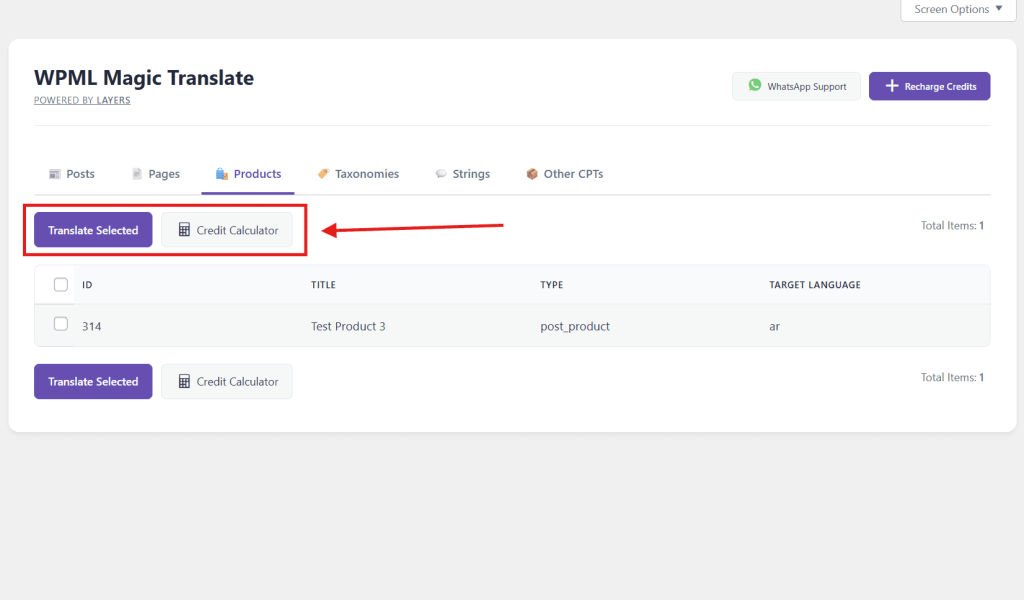
You will find multiple tabs such as:
- Posts
- Pages
- Products
- Taxonomies
- Strings
- Custom CPTs
Choose the content type you want to translate.
7. Translation Actions
After selecting the items you want to translate, you will see two buttons:
🔹 Translate Button
- Starts the translation immediately for the selected items
🔹 Credit Calculator Button
- Calculates exactly how many credits are required for the selected items
- Shows your current remaining balance
- Helps you decide whether you are ready to translate or need to recharge credits first
8. Support & Credits Recharge
At the top of the page, you will find two quick-access buttons:
- Recharge Credits
Quickly purchase more credits when needed - WhatsApp Support
Get direct help and support if you face any issues. Contact Now
9. You’re Ready 🚀
Once your API connection is valid and credits are available, you can start translating your website content instantly using WPML Magic Translate.